Apify proxy with LightningBytes
Add clean residential or mobile proxies to Apify Actors. Target the locations you need, choose rotating or sticky sessions, and run more reliable web scraping workflows
What is Apify?
Apify is a cloud platform for web scraping, browser automation, and data extraction. Its Store includes ready-made Actors for common scraping tasks, while developers can also build and run custom Actors with JavaScript or Python.
Many Apify Actors support custom HTTP and SOCKS5 proxies. Connecting LightningBytes lets you route requests through residential or mobile IPs, control the proxy location, and use rotating or sticky sessions based on the needs of your scraping workflow
How to use LightningBytes proxies with Apify
Follow the steps below to route Apify through your LightningBytes residential or mobile proxies.
- 1
Generate a proxy in LightningBytes
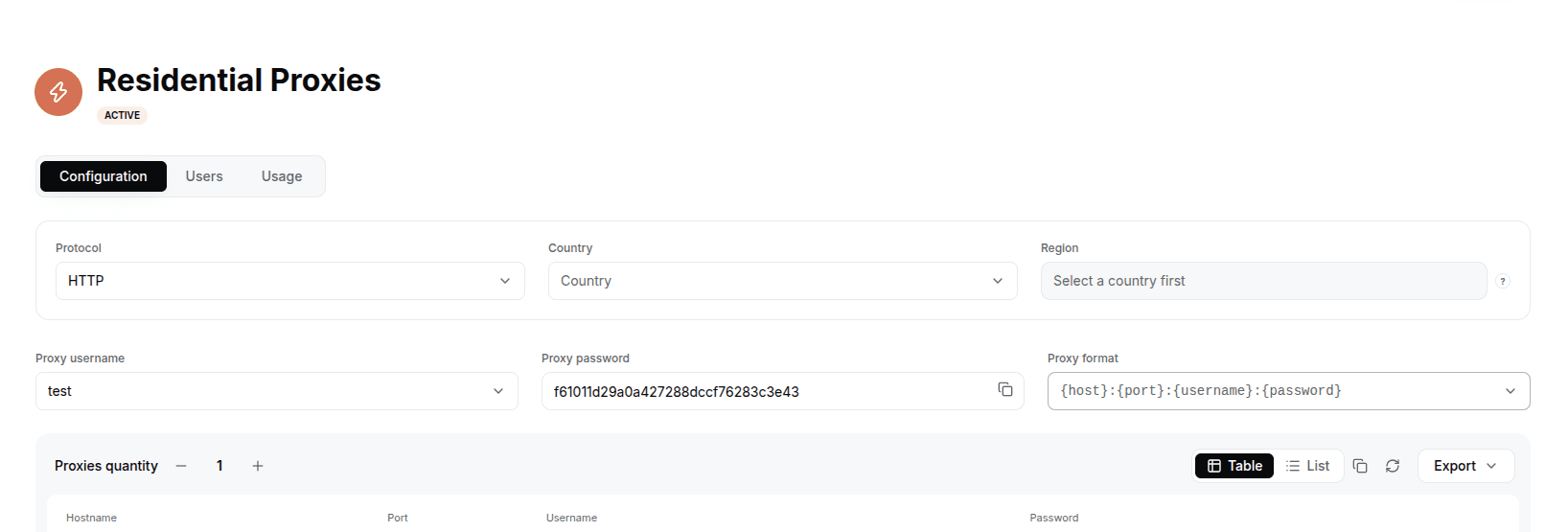
In the LightningBytes dashboard, open your Residential or Mobile proxies page and go to the Proxy tab. Choose the settings for your Apify workflow: protocol HTTP (Apify Web Scraper also supports custom SOCKS5 proxy URLs), the proxy type, a country, region, or city when available, and the session, Rotating for IP rotation or Sticky when the same IP should persist. Copy the generated endpoint when you are done.
- 2
Copy your LightningBytes proxy credentials
Copy the complete proxy details generated in the dashboard:
• Host: proxy.lightningbytes.com
• Port: 1080 (HTTP) or 10003 (SOCKS5)
• Username: your complete generated proxy username
• Password: your proxy password
Important: Do not shorten or edit the generated username. It can contain the selected location, session, and IP filter settings.
- 3
Open the Actors section in Apify
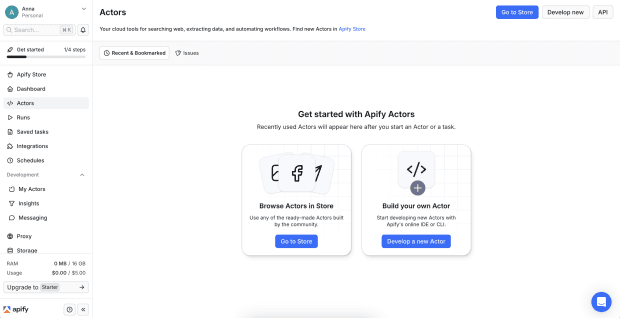
Sign in to Apify Console and click Actors in the left sidebar.
The Actors section gives you two options:
• Choose an existing Actor from Apify Store
• Create your own Actor
For this guide, choose an existing Actor from the Store.
- 4
Choose Web Scraper from Apify Store
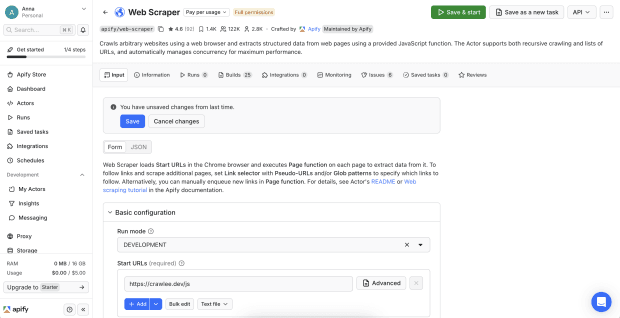
Search the Store for Web Scraper and select the Actor maintained by Apify.
The Web Scraper page opens directly on the Input tab. You do not need to open this tab separately.
- 5
Add the example website
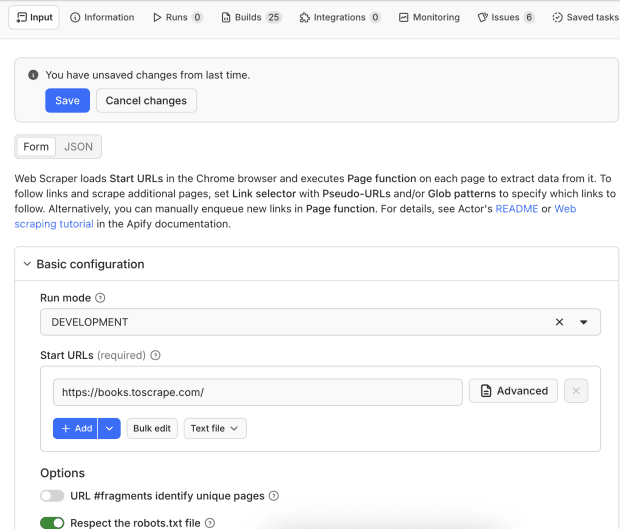
Under Basic configuration, find the Start URLs field and enter:
https://books.toscrape.com/
We use Books to Scrape only as an example in this guide. It is a sandbox website created specifically for practicing and demonstrating web scraping.
When configuring a real scraping workflow, replace this URL with the website you want to process. Always make sure that you have permission to access and scrape the target website.
- 6
Open the proxy configuration
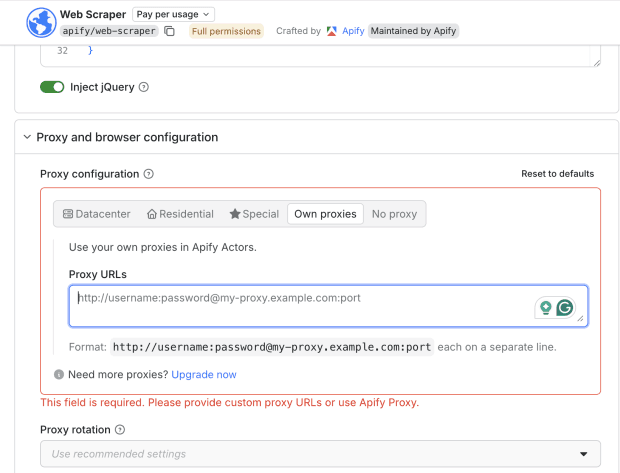
Stay on the Input tab and scroll down to Proxy and browser configuration.
Open the section and change the proxy setting to Own proxies. A field for entering custom proxy URLs will appear.
Note: The exact label can vary between Actors. If another Actor does not show an Own proxies option, it may not support custom proxies through its form input.
- 7
Enter the LightningBytes proxy URL
Add your LightningBytes proxy using the following format:
http://USERNAME:PASSWORD@proxy.lightningbytes.com:1080
Replace USERNAME and PASSWORD with the complete credentials copied from your LightningBytes dashboard. Keep http:// at the beginning of the URL.
Example:
http://your_generated_username:your_proxy_password@proxy.lightningbytes.com:1080
If the username or password contains a URL-reserved character, URL-encode it before pasting.
- 8
Save and start Web Scraper
Review the configuration and click Save & start in the upper-right corner.
Apify will save the input, launch Web Scraper, and send its requests through the configured LightningBytes proxy.
Open the run details to monitor its status and logs. A successful run should finish without a proxy connection or authentication error.
- 9
Check the scraping results
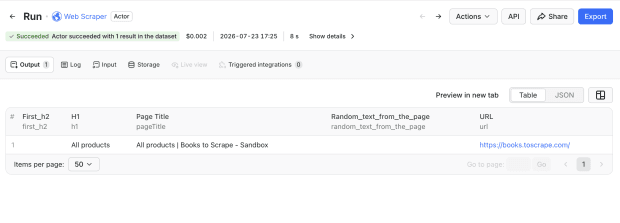
After the run finishes, open the Output tab.
A successful setup should show:
• A green Succeeded status
• One or more results in the dataset
• Information extracted from Books to Scrape
• No proxy connection or authentication errors
In this example, Apify returns the page title, H1 heading, and source URL from https://books.toscrape.com/.
Your LightningBytes proxy is now successfully connected to Apify.
Connect Apify to clean, filtered IPs
Residential IPs for scraping e-commerce data at scale, mobile carrier IPs for the hardest targets, on pay-as-you-go or subscription plans with HTTP(S) and SOCKS5.