Ghost Browser proxy with LightningBytes
Pair Ghost Browser's identity management features with ethically sourced IPs for account farming, e-commerce operations, lead generation, web research, and other multi-session activities
What is Ghost Browser?
Ghost Browser is a Chromium-based browser built for managing multiple accounts and online identities from a single workspace. Using a Ghost Browser proxy setup, users can assign different IPs to separate sessions while keeping cookies and account data isolated.
Combined with LightningBytes proxies, Ghost Browser supports stable sessions, flexible geotargeting, and streamlined Ghost proxy control for marketers, researchers, e-commerce teams, and automation professionals
- Custom proxy configuration
- 30M+ residential IPs pool
- 24/7 expert support
How to use LightningBytes proxies with Ghost Browser
Follow the steps below to route Ghost Browser through your LightningBytes residential or mobile proxies.
- 1
Open Ghost proxy control
Click the Ghost Proxy Control icon in the top-right corner, then select Add/Edit Proxies to access the proxy settings
- 2
Add a new proxy
Navigate to the Add a Single Proxy tab and create a new proxy entry for your LightningBytes connection
- 3
Generate your LightningBytes proxy
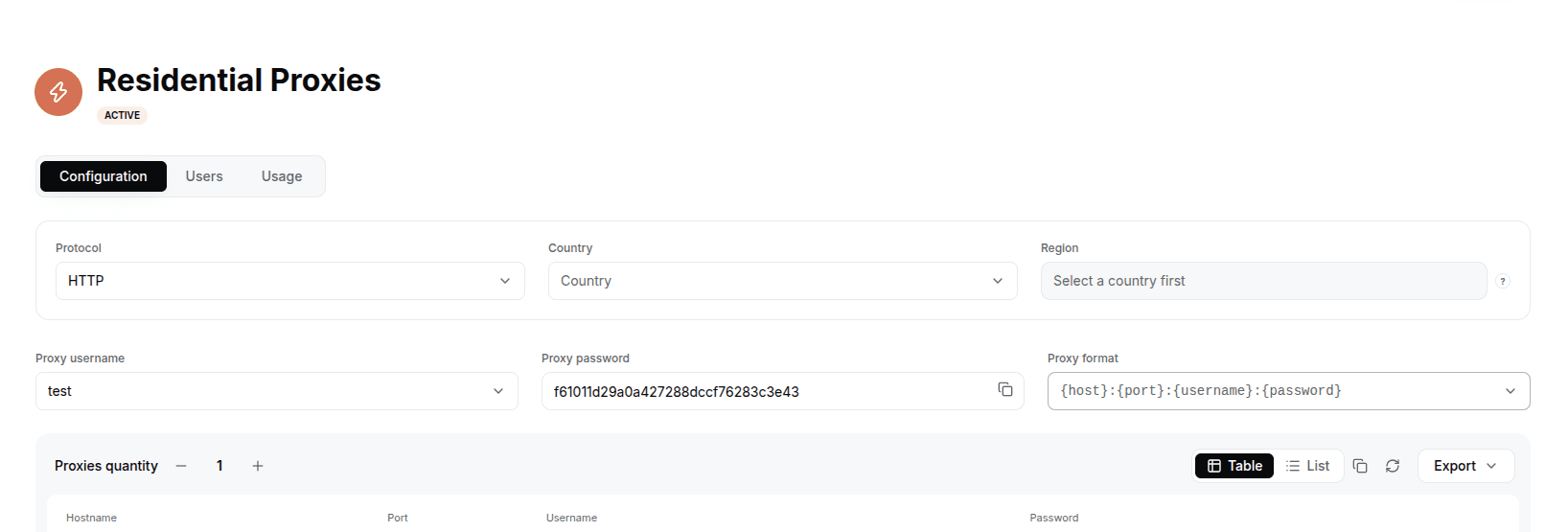
In the LightningBytes dashboard, open your Residential or Mobile proxies page and go to the Proxy tab. Choose the protocol (HTTP or SOCKS5), set the country and region if you need targeting, and select the proxy user. Copy the generated endpoint, host:port:username:password by default, or pick a different format from the Proxy format dropdown.
- 4
Enter LightningBytes credentials
Fill in the proxy host, port, username, and password generated in your LightningBytes dashboard, then click Add Proxy
- 5
Test the proxy
Open the Test Proxies tab, select your newly added proxy, and run a connection test to verify that it is working properly
- 6
Enable the proxy
Go to Proxy List, select your LightningBytes proxy, and click Enable to activate it
Connect Ghost Browser to clean, filtered IPs
Residential IPs for scraping e-commerce data at scale, mobile carrier IPs for the hardest targets, on pay-as-you-go or subscription plans with HTTP(S) and SOCKS5.