Happ proxy for stable mobile workflows
Use LightningBytes residential and mobile proxies with Happ on iOS and Android. Get pre-filtered for quality SOCKS5 proxy connections, stable sessions, and flexible IP options for mobile workflows.
What is Happ Proxy Utility?
Happ Proxy Utility is a proxy management app for iOS and Android that helps route mobile traffic through proxy servers. It allows users to configure residential and mobile proxies for stable mobile workflows, app testing, automation, and localised connections.
When used with LightningBytes proxies, Happ Proxy Utility provides clean IPs, stable sessions, and consistent mobile performance.
How to use LightningBytes proxies with Happ
Follow the steps below to route Happ through your LightningBytes residential or mobile proxies.
- 1
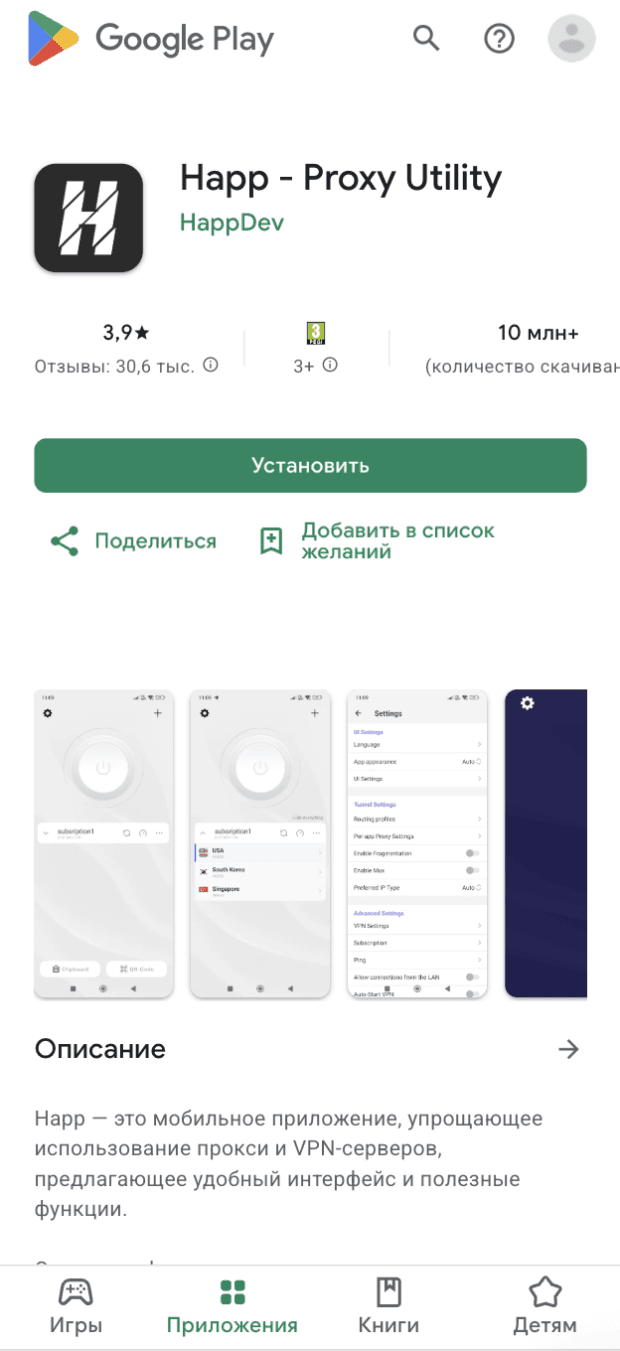
Download Happ - Proxy Utility App for iOS or Android
Download Happ - Proxy Utility for iOS or Android
Install the Happ app on your device:
• Happ iOS: App Store
• Happ Android: Google Play
In some regions, the Happ app may not be available in the App Store or Google Play. In this case, change your Apple ID or Google Play account region settings to download the app.
Happ for iOS and Happ VPN Android support manual SOCKS proxy configuration for mobile workflows and proxy-based connections.
- 2
Generate a SOCKS5 proxy in the LightningBytes dashboard
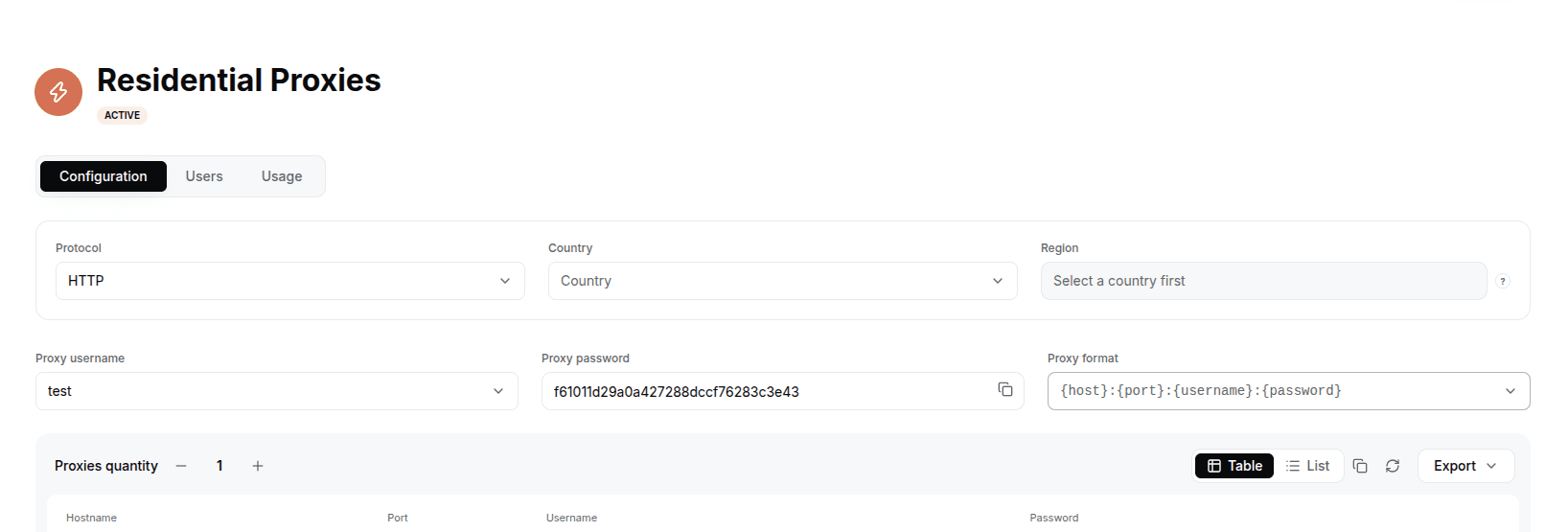
In the LightningBytes dashboard, open your Residential or Mobile proxies page and go to the Proxy tab. Create a proxy for Happ with the SOCKS5 protocol, set the country and region if you need targeting, and select the proxy user. You can use a residential or mobile proxy for Happ depending on your workflow and session requirements.
Important: Happ Proxy Utility supports only the SOCKS protocol.
Tip: You can start testing our proxies with a small pay-as-you-go package, no monthly commitment.
- 3
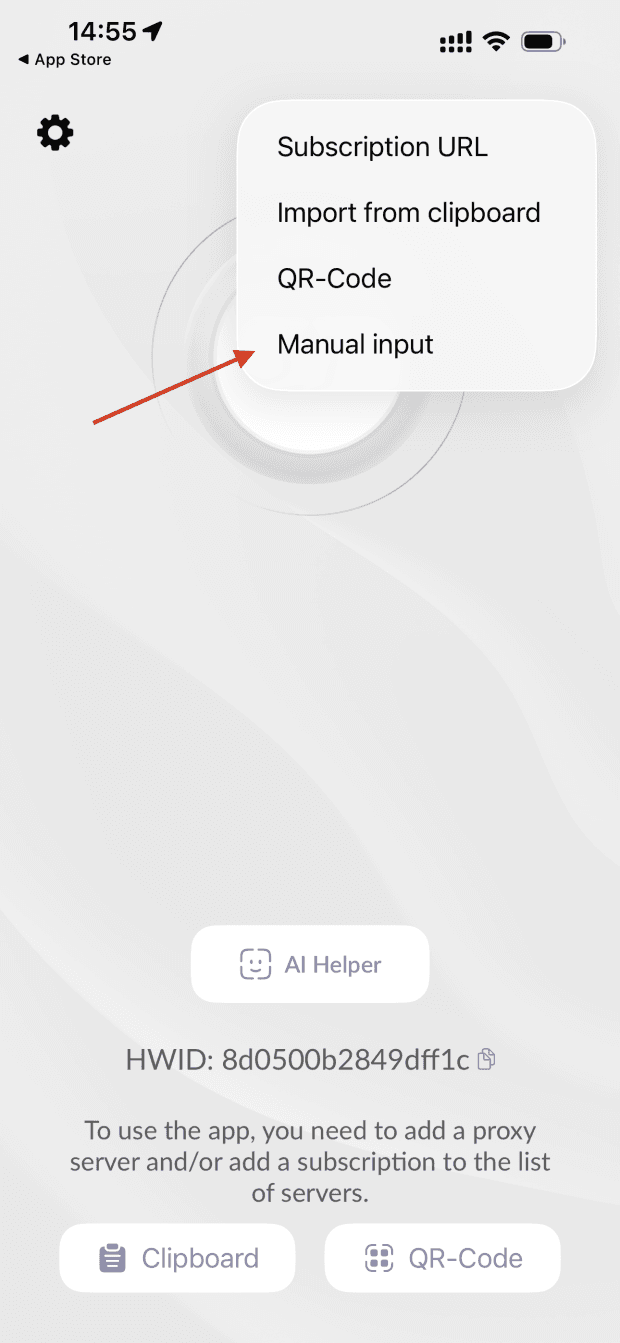
Open Happ proxy configuration
In the Happ Proxy Utility app:
• Click the + button
• Select Manual input
This opens the Happ proxy config screen where you can manually add your proxy for Happ.
- 4
Add your Happ proxy server details
Change the protocol to SOCKS and enter your LightningBytes proxy details:
Server address: proxy.lightningbytes.com
Port: 10003
Username: your proxy username
Password: your proxy password
This setup works for Happ VPN iOS, Happ VPN Android, and Happ Proxy Utility configurations.
Once completed, click Done to save the Happ proxy server settings.
- 5
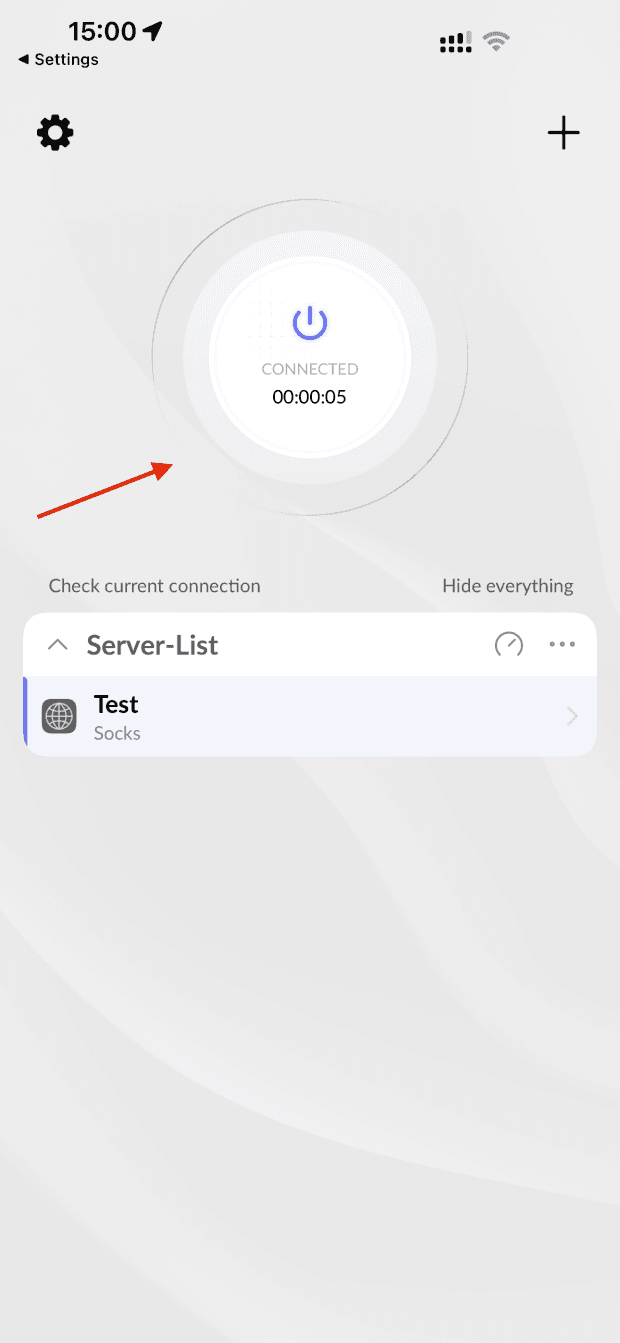
Connect to the Happ VPN proxy
Click the Power button inside the Happ app to activate the proxy connection.
If everything is configured correctly, your mobile traffic will run through the LightningBytes proxy server for Happ with stable sessions and consistent performance.
Your Happ proxy is now active.
Connect Happ to clean, filtered IPs
Residential IPs for scraping e-commerce data at scale, mobile carrier IPs for the hardest targets, on pay-as-you-go or subscription plans with HTTP(S) and SOCKS5.