Octoparse proxy with LightningBytes
Compare Octoparse’s built-in proxies with premium LightningBytes residential and mobile proxies. Follow both setup methods to rotate IPs, target the locations you need, and improve scraping reliability
What is Octoparse, and why use proxies?
Octoparse is a no-code web scraping tool that turns website content into structured data through a visual workflow. Proxies route its requests through different IP addresses, helping reduce IP-based restrictions, access location-specific content, and keep larger extraction tasks running more consistently.
Octoparse offers built-in residential proxies and also supports external HTTP proxies for local runs. The right option depends on whether you prioritise quick setup, cloud compatibility, precise targeting, session control, or visibility into proxy quality
How to use LightningBytes proxies with Octoparse
Follow the steps below to route Octoparse through your LightningBytes residential or mobile proxies.
- 1
Enable built-in proxies
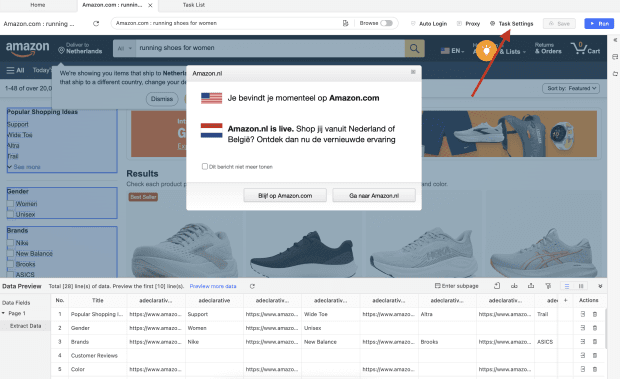
Open the task you want to run through proxies. Go to Task Settings > Anti-blocking, enable Access website via proxies, and select Use Octoparse proxies.
- 2
Choose the location and rotation interval
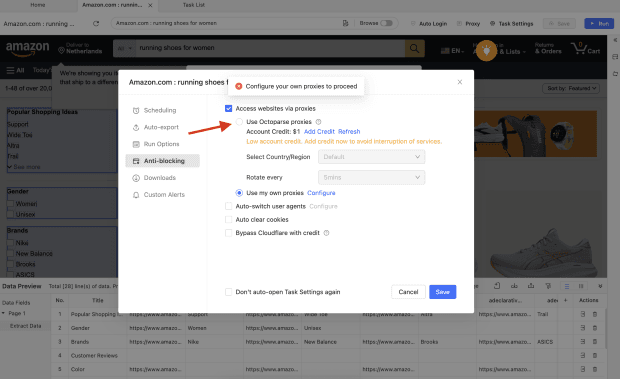
Select Default for IPs from random countries, or choose an available Country/Region. Set Rotate time, click Save, and run a small test before scaling the task.
Built-in proxies are convenient and compatible with local and cloud runs, but traffic is billed separately. Octoparse currently lists built-in proxy usage at $3/GB and notes that the proxies may not work for every page. Available locations depend on Octoparse’s list; users who need more granular targeting, session control, or IP-quality settings may prefer a dedicated proxy provider, like LightningBytes.
- 3
Configure and copy a LightningBytes proxy
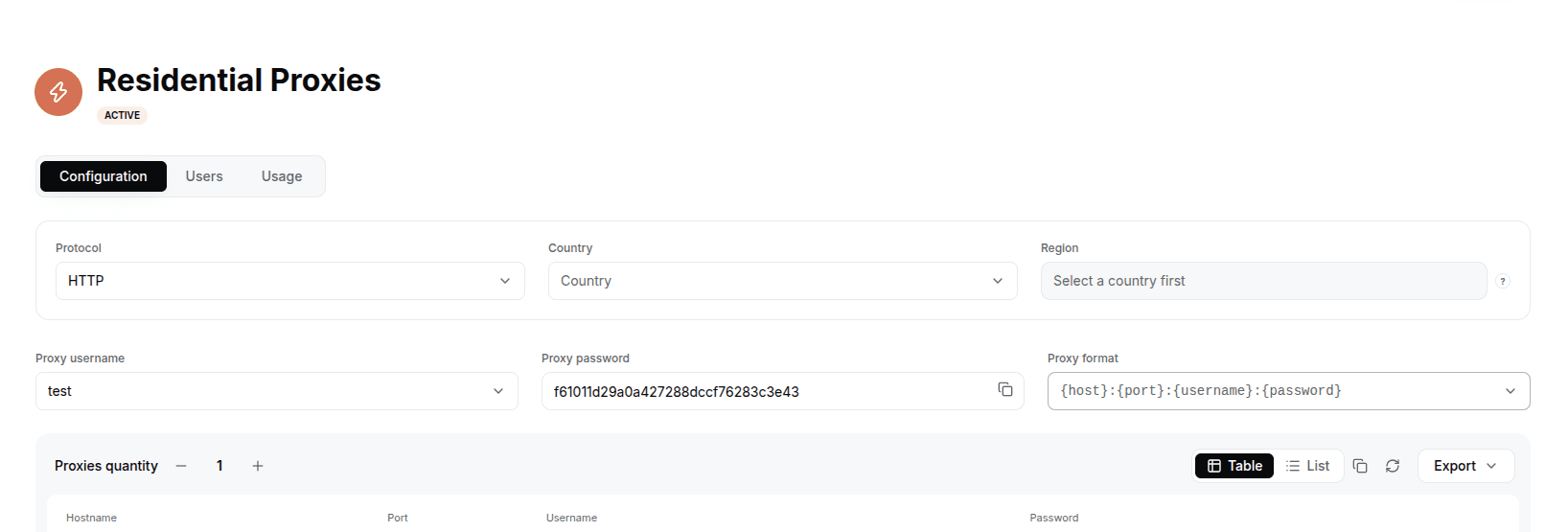
Octoparse accepts external HTTP proxies only in HOST:PORT format and does not support username and password authentication, so your IP must be allowlisted before you connect. Find your public IPv4 address with a trusted “What is my IP” service, then add it to your account’s IP allowlist in the LightningBytes dashboard (or ask support to enable it). In the LightningBytes dashboard, open your Residential or Mobile proxies page and go to the Proxy tab: Residential or Mobile type, the location you need, Rotating or Sticky session, HTTP protocol, and the number of endpoints you need. Save and copy the endpoint in HOST:PORT format, without http://, a username, or a password. If your public IP changes, update the allowlisted IP before running the task again.
- 4
Open the Octoparse proxy settings
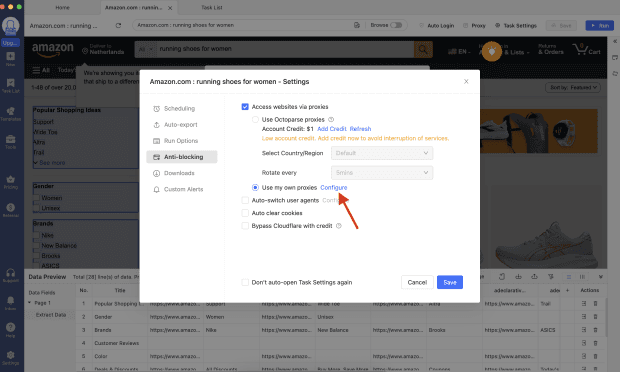
Return to the extraction task in Octoparse. Go to Task Settings > Anti-blocking, enable Access website via proxies, select Use my own proxies, and click Configure.
This is the task-level proxy setting used for scraping. Do not use the proxy option on the Octoparse login screen, which applies only to signing in.
- 5
Add the LightningBytes proxy endpoint
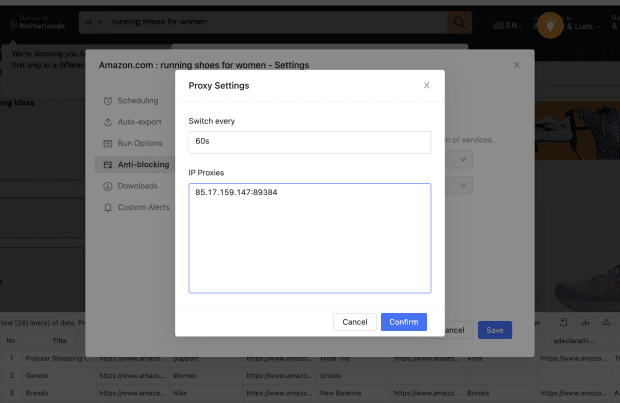
Paste the LightningBytes endpoint in HOST:PORT format. If you generated multiple endpoints, enter them as separate proxies, then confirm the configuration.
Important: Octoparse supports only HTTP external proxies for this workflow. SOCKS5 endpoints and authenticated URLs containing a username and password are not supported.
- 6
Save and run the task locally
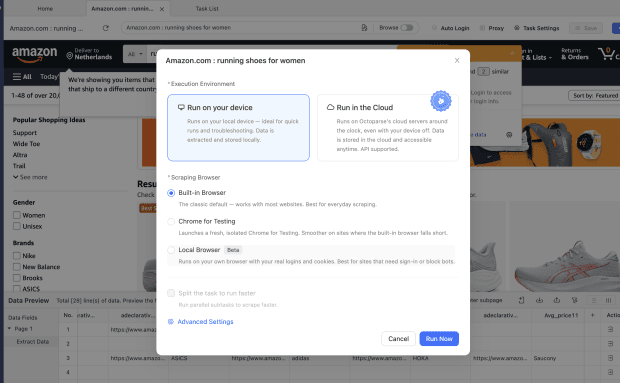
Save the task and start a local run. Octoparse currently limits user-supplied external proxies to local extraction; cloud runs use Octoparse’s built-in proxy options.
Confirm that pages load, the task collects complete records, and location-sensitive content matches the location selected in LightningBytes. Check the run log for proxy errors or repeated blocks before scaling the extraction.
LightningBytes gives local Octoparse tasks more control through country, region, city targeting where available, rotating or sticky sessions, and IP Quality Filter settings.
Your LightningBytes proxy is now connected to Octoparse.
Connect Octoparse to clean, filtered IPs
Residential IPs for scraping e-commerce data at scale, mobile carrier IPs for the hardest targets, on pay-as-you-go or subscription plans with HTTP(S) and SOCKS5.