Dolphin Anty proxy with LightningBytes
Use LightningBytes proxy for Dolphin Anty. Try residential and mobile IPs with full HTTP and SOCKS5 support, assign them to profiles in seconds, and keep every account isolated
What is Dolphin Anty?
Dolphin Anty is an antidetect browser designed for managing multiple online accounts from a single device. It allows you to create separate browser profiles, each with its own fingerprint, cookies, and environment, so platforms treat them as independent users.
You can customize settings like geolocation, device parameters, and session behavior, making it easier to run ads, manage social media accounts, or handle large-scale workflows without triggering detection systems
- Custom proxy configuration
- 30M+ residential IPs pool
- 24/7 expert support
How to use LightningBytes proxies with Dolphin Anty
Follow the steps below to route Dolphin Anty through your LightningBytes residential or mobile proxies.
- 1
Create a profile in Dolphin Anty
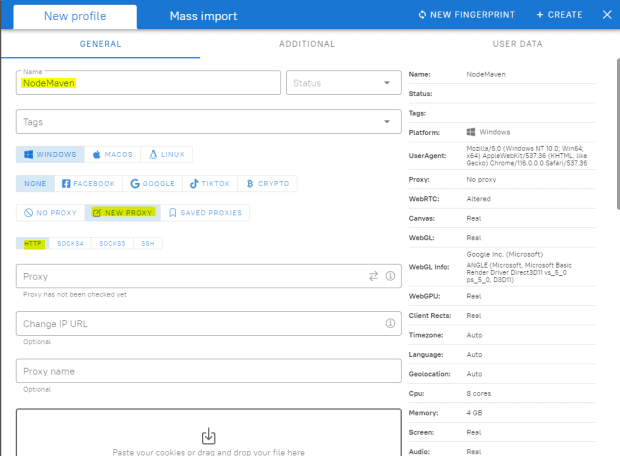
Log in to Dolphin Anty and click Create Profile. Set a name for your profile so you can easily identify it later (for example by account or location)
- 2
Add a proxy to the profile
Open the proxy settings inside your profile and click New Proxy. This is where you’ll connect your LightningBytes proxy to the browser profile.
- 3
Copy your LightningBytes proxy details
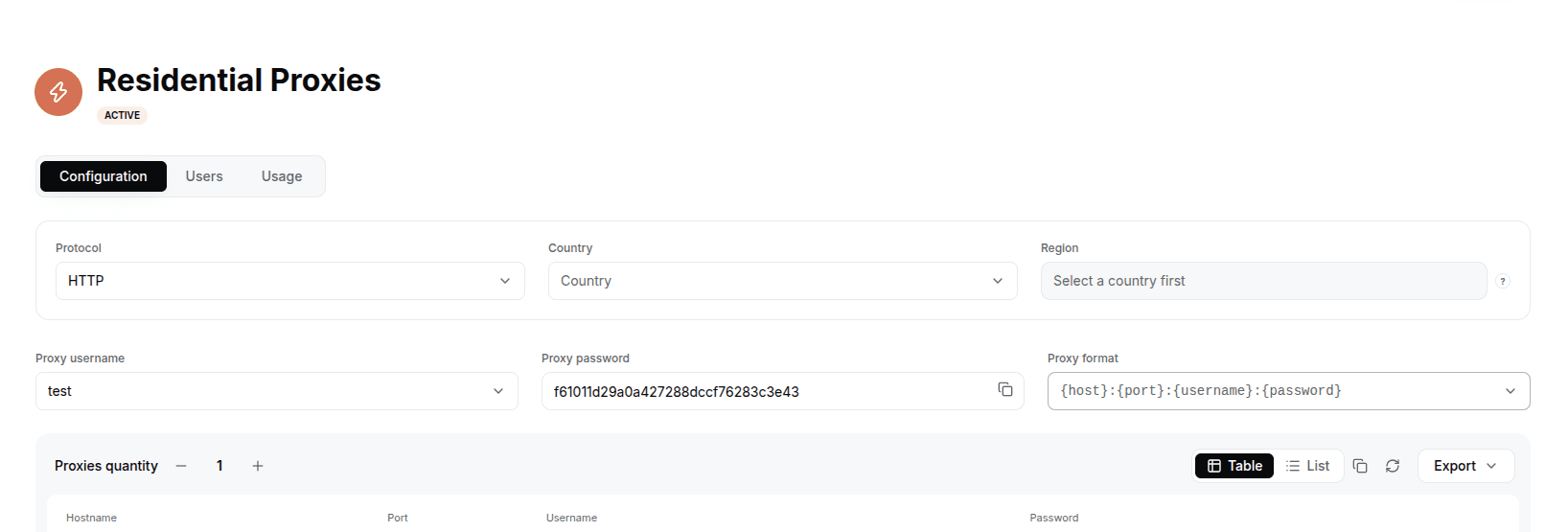
In the LightningBytes dashboard, open your Residential or Mobile proxies page and go to the Proxy tab. Choose the details you need like Country/Region/City and Session type, then copy the generated string.
You don’t need to manually type in the proxy details (Host, Port, Username, Password) in Dolphin Anty settings. The endpoints in LightningBytes are arranged with a format that is accepted by Dolphin Anty, which is host:port:login:password. Simply paste the copied string into the Proxy section of the Dolphin Anty settings.
After entering the proxy details, Dolphin Anty will display your newly assigned IP address below.
- 4
Save and launch the profile
Click Create to save your proxy settings. Once added, the profile will use the assigned IP, you can launch it and start working immediately.
Connect Dolphin Anty to clean, filtered IPs
Residential IPs for scraping e-commerce data at scale, mobile carrier IPs for the hardest targets, on pay-as-you-go or subscription plans with HTTP(S) and SOCKS5.