GeeLark proxy with LightningBytes
To get started, download and install Geelark
What is Geelark?
Geelark is a mobile-focused antidetect platform that lets you create and manage multiple app accounts using cloud-based Android environments. Each profile runs with unique device parameters, helping you keep accounts isolated and reduce detection risks.
It supports automation through built-in tools like synchronizer and action templates, making it easier to scale workflows across platforms such as TikTok, Facebook, and other mobile-first apps. Teams can manage access, run operations remotely, and control profiles from a single dashboard
- Custom proxy configuration
- 30M+ residential IPs pool
- 24/7 expert support
How to use LightningBytes proxies with GeeLark
Follow the steps below to route GeeLark through your LightningBytes residential or mobile proxies.
- 1
Create a new profile
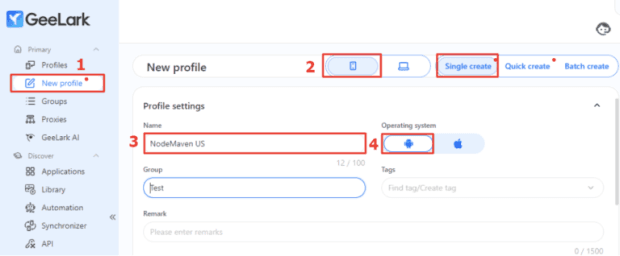
Open Geelark and click New profile.Select Single create, enter a name, and choose your cloud phone’s operating system
- 2
Configure proxy settings
In the profile setup, go to Proxy settings and select Custom.Choose a protocol: HTTP or SOCKS5
- 3
Generate your LightningBytes proxy
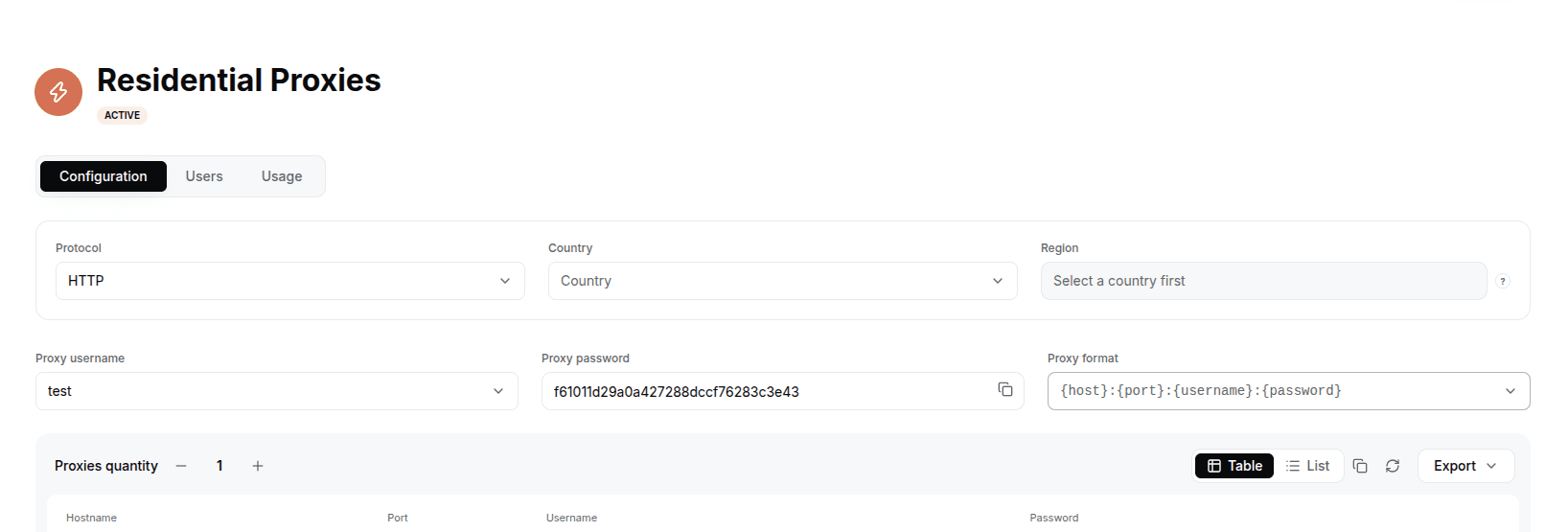
In the LightningBytes dashboard, open your Residential or Mobile proxies page and go to the Proxy tab. Choose the protocol (HTTP or SOCKS5), set the country and region if you need targeting, and select the proxy user. Copy the generated endpoint, host:port:username:password by default, or pick a different format from the Proxy format dropdown.
- 4
Enter proxy details
Paste your LightningBytes proxy in this format:
host:port:username:password
Or fill in manually:
Host: proxy.lightningbytes.com
Port: 1080 (HTTP) or 10003 (SOCKS5)
Username: your LightningBytes username
Password: your LightningBytes password
- 5
Check and launch
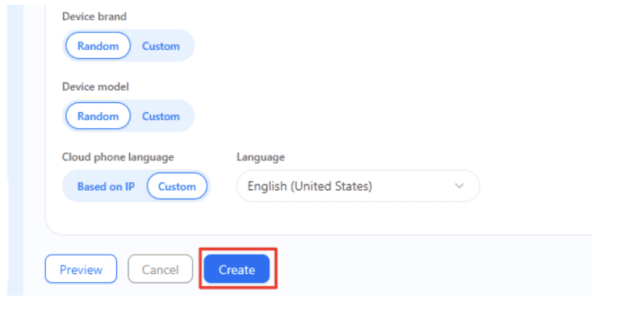
Click Check proxy to verify connection.Then click Create and press Start to launch your profile with the proxy enabled
Connect GeeLark to clean, filtered IPs
Residential IPs for scraping e-commerce data at scale, mobile carrier IPs for the hardest targets, on pay-as-you-go or subscription plans with HTTP(S) and SOCKS5.