Incogniton proxy with LightningBytes
Learn how to integrate LightningBytes proxies with Incogniton. Residential, mobile IPs with full HTTP and SOCKS5 support, set up in under a minute
What is Incogniton?
Incogniton is an anti-detect browser designed to enhance online privacy and streamline the management of multiple browsing profiles. It allows users to create unique digital fingerprints, customize browser profiles, and control geolocation settings. Incogniton supports team accounts with role-specific permissions, and offers automation tools like Synchronizer for repetitive tasks, along with Selenium and REST API integration
- Custom proxy configuration
- 30M+ residential IPs pool
- 24/7 expert support
How to use LightningBytes proxies with Incogniton
Follow the steps below to route Incogniton through your LightningBytes residential or mobile proxies.
- 1
Create a new browser profile
Open Incogniton and navigate to Profile Management. Click New Profile to start setting up a new browser environment. Give your profile a clear name that helps you identify it later, for example, by account, geo-location, or project.
- 2
Open the proxy settings
Scroll down to the proxy configuration section and click Add Proxy. Select your proxy type: HTTP or SOCKS5. LightningBytes supports both protocols, so choose based on your workflow requirements.
- 3
Get your proxy credentials from LightningBytes
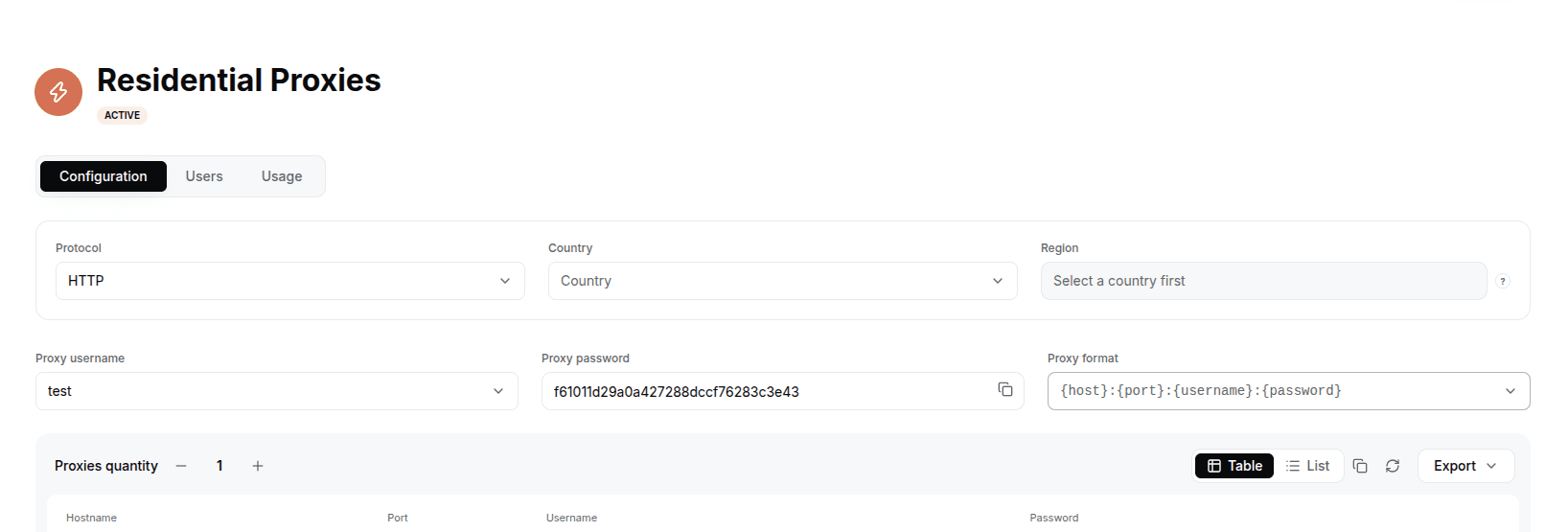
Log in to the LightningBytes dashboard, open your Residential or Mobile proxies page, and go to the Proxy tab. Select your preferred settings, Country, Region or City, and Session type (rotating or sticky). Copy the generated proxy details in host:port:username:password format.
- 4
Enter proxy details
Paste or manually enter the following fields in Incogniton's proxy settings:
• Host, the proxy server address
• Port, the connection port
• Username, your LightningBytes proxy login
• Password, your LightningBytes proxy password
You can paste the full host:port:login:password string and fill in each field individually, or type the details in manually if your setup requires it.
Click Check Proxy. Incogniton will send a test request through your proxy and display the assigned IP address if the connection is successful. Confirm the IP matches the country or region you selected in LightningBytes.
Click Create Profile to save your settings.
Connect Incogniton to clean, filtered IPs
Residential IPs for scraping e-commerce data at scale, mobile carrier IPs for the hardest targets, on pay-as-you-go or subscription plans with HTTP(S) and SOCKS5.