ixBrowser proxy with LightningBytes
Run ixBrowser with reliable ixBrowser proxies. Connect residential or mobile IPs with full HTTP and SOCKS5 support, and launch secure multi-account sessions in minutes
What is ixBrowser?
ixBrowser is an anti-detect browser designed for secure multi-account management and fingerprint isolation. It allows you to create separate browser profiles, each with a unique digital identity, helping prevent account linking and detection.
The platform supports proxy integration, profile customization, and automation workflows, making it suitable for use cases like social media management, e-commerce operations, and affiliate marketing. Its performance-focused engine ensures stable operation even when running multiple profiles at scale
- Custom proxy configuration
- 30M+ residential IPs pool
- 24/7 expert support
How to use LightningBytes proxies with ixBrowser
Follow the steps below to route ixBrowser through your LightningBytes residential or mobile proxies.
- 1
Create a profile in ixBrowser
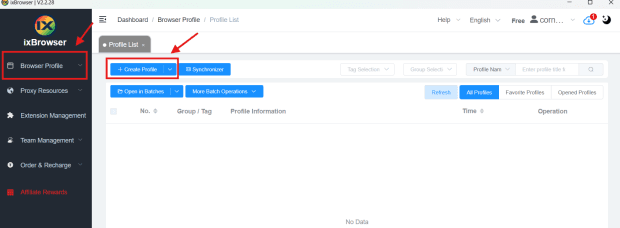
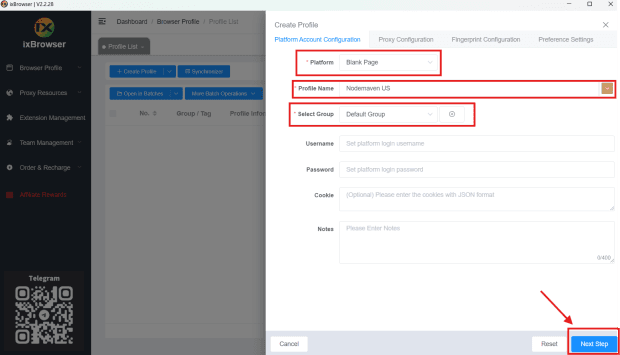
Go to the Profile List section in ixBrowser and click Create Profile.In Platform Account Configuration, select a platform (for example, Blank Page or any option you prefer). Enter a name in the Profile Name field and choose a group in Select Group or leave the default option
- 2
Open proxy configuration
After setting up the profile basics, click Next Step or open the Proxy Configuration tab. This is where you will connect your ixBrowser proxy
- 3
Generate your LightningBytes proxy
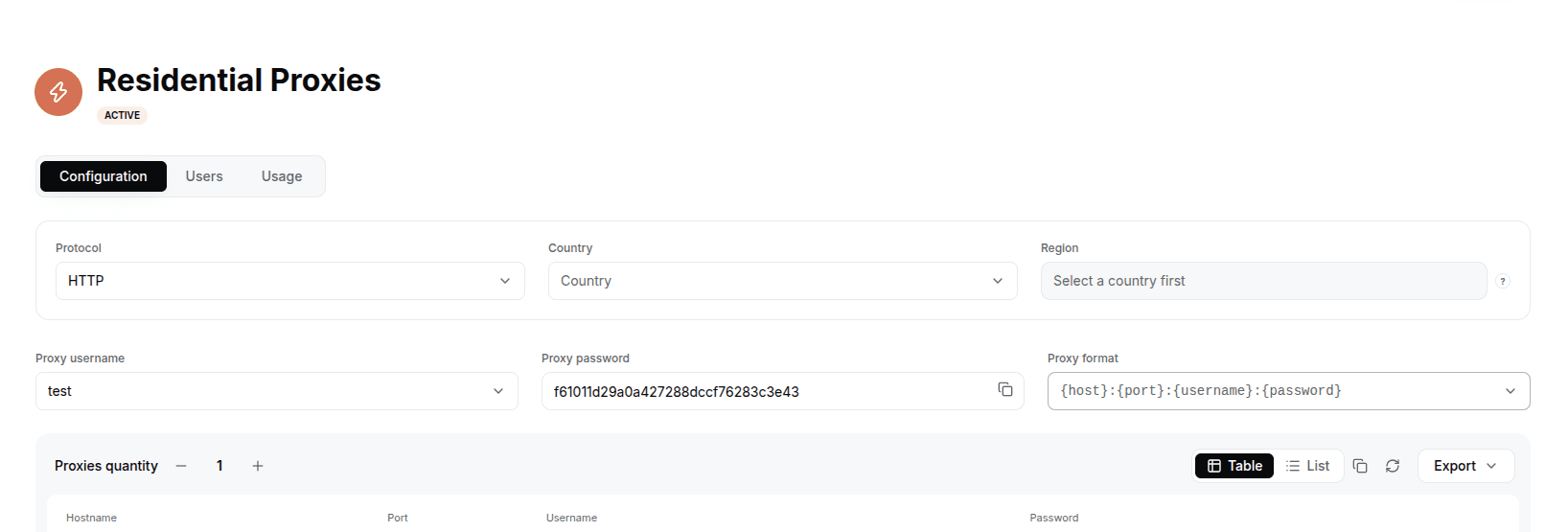
In the LightningBytes dashboard, open your Residential or Mobile proxies page and go to the Proxy tab. Choose the protocol (HTTP or SOCKS5), set the country and region if you need targeting, and select the proxy user. Copy the generated endpoint, host:port:username:password by default, or pick a different format from the Proxy format dropdown.
- 4
Configure your ixBrowser proxy
In the Proxy Configuration section, select Custom as the proxy method. Choose the protocol in Proxy Type (HTTP or SOCKS5), then enter your LightningBytes proxy details.
Fill in the fields manually, host proxy.lightningbytes.com, port 1080 for HTTP or 10003 for SOCKS5, plus your username and password, or simply paste the host:port:username:password string.
- 5
Test and launch
Click Proxy Detection to test the connection. The tool will display the proxy IP and location below.If everything is correct, click Create to save the profile. Then go back to the profile list and click Open to start using your ixBrowser proxy.
Connect ixBrowser to clean, filtered IPs
Residential IPs for scraping e-commerce data at scale, mobile carrier IPs for the hardest targets, on pay-as-you-go or subscription plans with HTTP(S) and SOCKS5.