 Integration guide
GoLogin proxy with LightningBytes
GoLogin stores a proxy per profile, so the setup is one address per identity. This guide takes a LightningBytes endpoint and binds it to a GoLogin profile over HTTP or SOCKS5.
What is GoLogin?
GoLogin is an anti-detect browser for running many isolated profiles from one machine. Each profile carries its own fingerprint, cookie jar and network identity, which is what lets several accounts stay separate.
The network identity is the part a proxy supplies. GoLogin accepts a proxy per profile over HTTP or SOCKS5, including authenticated endpoints, so a profile can leave from its own residential or mobile address.
- Per-profile proxy assignment
- HTTP and SOCKS5 with authentication
- Residential and mobile endpoints
How to use LightningBytes proxies with GoLogin
Follow the steps below to route GoLogin through your LightningBytes residential or mobile proxies.
- 1
Create a profile in GoLogin
Open the Profiles list and create a new profile. Give it a name you can match to one account, and set the platform and browser settings the account should look like. One profile per account keeps the address and the fingerprint tied together.
- 2
Generate your LightningBytes proxy
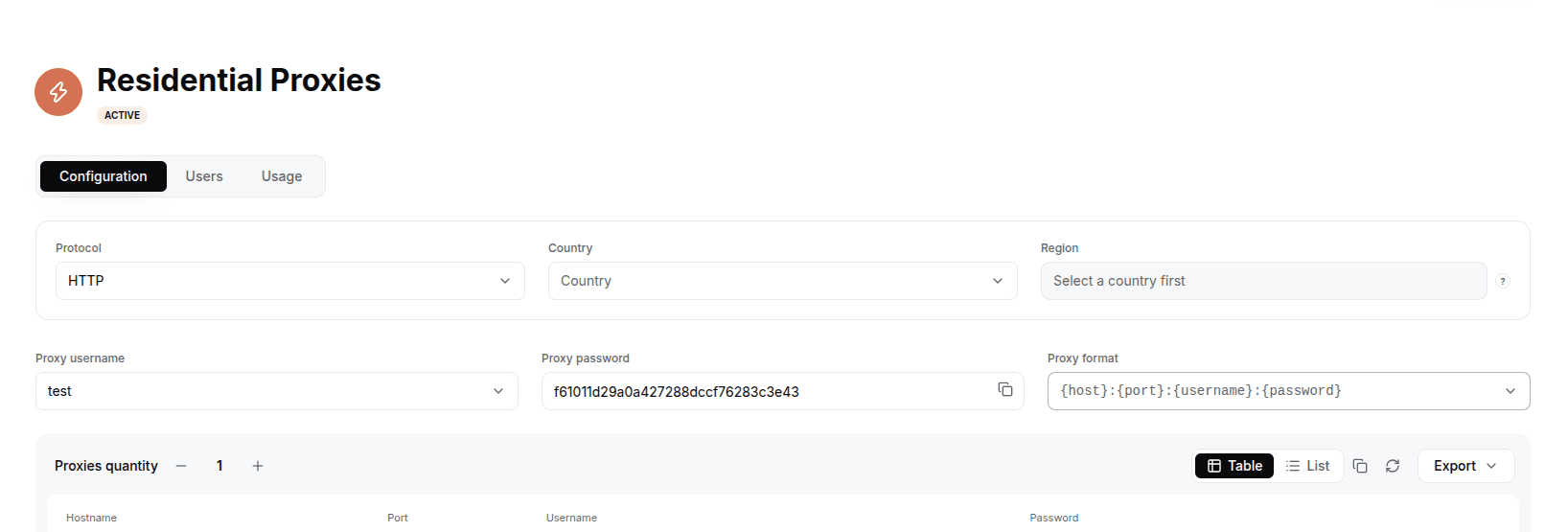
In the LightningBytes dashboard, open your Residential or Mobile proxies page and go to the Proxy tab. Choose the protocol (HTTP or SOCKS5), set the country and region if you need targeting, and select the proxy user. Copy the generated endpoint, host:port:username:password by default, or pick a different format from the Proxy format dropdown.
- 3
Open the proxy settings for the profile
In the profile editor, open the Proxy tab. Choose the connection type that matches the protocol you generated: HTTP for port 1080, SOCKS5 for port 10003.
- 4
Enter the endpoint details
Fill in the fields as follows:
Host: proxy.lightningbytes.com
Port: 1080 for HTTP, 10003 for SOCKS5
Username: your full generated username, including any country and session segments
Password: your proxy password
Use your own username rather than a saved one, because the country and session settings live inside it.
- 5
Check the connection, then launch
Use the profile's proxy check to confirm the exit address and country. The country must agree with the timezone and language you set on the profile, or the mismatch is visible on the first request. Once the check passes, save and start the profile.
Connect GoLogin to clean, filtered IPs
Residential IPs for scraping e-commerce data at scale, mobile carrier IPs for the hardest targets, on pay-as-you-go or subscription plans with HTTP(S) and SOCKS5.