 Integration guide
Octo Browser proxy with LightningBytes
Octo Browser assigns a proxy at the profile level and checks it before the profile starts. This guide covers generating a LightningBytes endpoint and binding it to a profile.
What is Octo Browser?
Octo Browser is an anti-detect browser built around isolated profiles, each with its own fingerprint, storage and network settings. Teams use it to run sets of accounts without those accounts sharing a device or a connection.
It takes a proxy per profile and validates it on save, which makes a wrong port or a truncated username fail in the editor rather than partway through a session.
- Proxy per profile with a connection check
- HTTP and SOCKS5 support
- Team access with profile sharing
How to use LightningBytes proxies with Octo Browser
Follow the steps below to route Octo Browser through your LightningBytes residential or mobile proxies.
- 1
Create a new profile
Click New profile in Octo Browser. Fill in the profile name and fingerprint settings, then open the proxy section. Keep one profile per account so the address is never shared between identities.
- 2
Generate your LightningBytes proxy
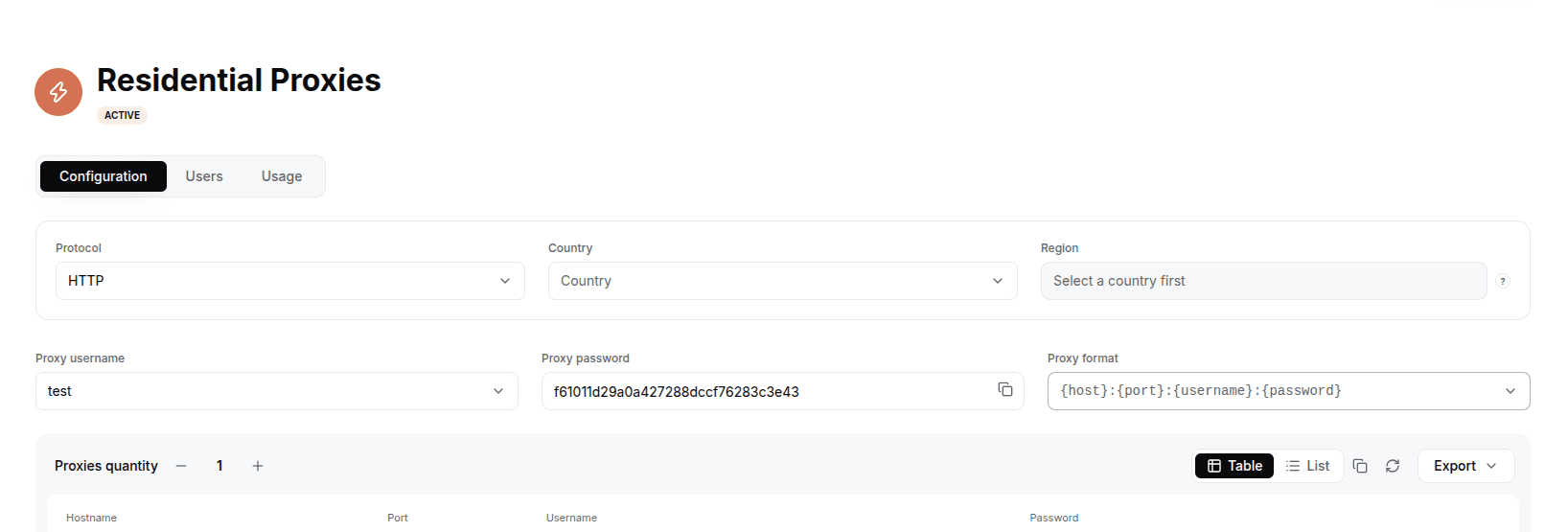
In the LightningBytes dashboard, open your Residential or Mobile proxies page and go to the Proxy tab. Choose the protocol (HTTP or SOCKS5), set the country and region if you need targeting, and select the proxy user. Copy the generated endpoint, host:port:username:password by default, or pick a different format from the Proxy format dropdown.
- 3
Choose the proxy type
In the proxy section select the type that matches the endpoint: HTTP for port 1080, SOCKS5 for port 10003. Both protocols reach the same gateway, so pick the one your workflow already uses.
- 4
Paste the host, port and credentials
Enter the details as follows:
Host: proxy.lightningbytes.com
Port: 1080 for HTTP, 10003 for SOCKS5
Username: your full generated username, including any country and session segments
Password: your proxy password
Leave the username intact. Trimming the session or country segment sends the profile out from the default location instead of the one you chose.
- 5
Run the connection check, then start the profile
Use Check proxy in the editor. Confirm the reported IP and country match the settings you generated, then save and launch. If the check fails, verify the port against the protocol first, since that is the most common mismatch.
Connect Octo Browser to clean, filtered IPs
Residential IPs for scraping e-commerce data at scale, mobile carrier IPs for the hardest targets, on pay-as-you-go or subscription plans with HTTP(S) and SOCKS5.